How to Get Just the Recipe from Any Website
You clicked a recipe link. You do not want to read 1,400 words about how autumn light in Tuscany changed a food blogger's perspective on pasta. You want the pasta recipe.
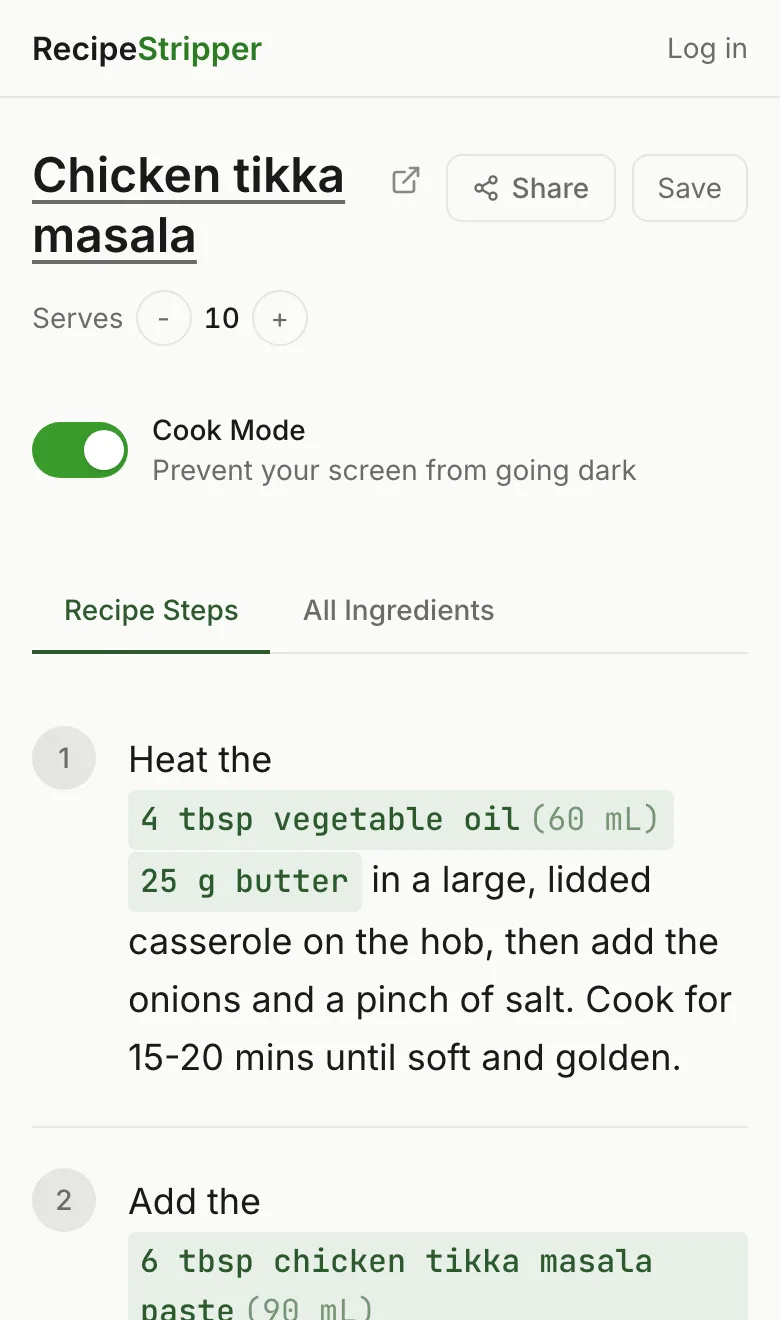
There are five ways to get there. Here they are, ranked from easiest to most effort.
Method 1: Use RecipeStripper (Easiest)
How it works: Copy the URL of the recipe page, paste it into RecipeStripper, and press Enter. The tool fetches the page, extracts just the recipe content, and displays it in a clean format — ingredients, instructions, nothing else. No ads, no backstory, no autoplay video.
How long it takes: About 3-5 seconds for the extraction, plus however long it takes you to copy and paste a URL.
Pros:
- No installation required
- Works on any device — phone, tablet, desktop
- Gives you a genuinely clean reading experience, not just a shortcut to the recipe card
- Inline ingredient quantities in steps (so "add the flour" shows you exactly how much flour)
- Servings scaler built in
- Cook Mode keeps your screen on while cooking
Cons:
- Requires copying and pasting the URL
- A small number of sites actively block automated extraction (notably sites on Dotdash Meredith's network)
Best for: Phones and tablets, sites with aggressive ads or autoplay video, any time you want a clean reading experience rather than just skipping past the blog content.
Method 2: The Jump to Recipe Button
How it works: Most food blogs now include a "Jump to Recipe" button near the top of the page, usually in the first screenful. Clicking it scrolls you directly to the recipe card — the structured box with ingredients and instructions — bypassing all the prose above it.
How long it takes: Two seconds, if the button exists and you can find it.
Pros:
- Zero effort — it's right there on the page
- You're already on the site, so it works instantly
- No copy-pasting, no separate tool
Cons:
- Not every site has it. Smaller blogs, older sites, and non-WordPress sites often don't include this button
- You're still on a page full of ads — you've just been deposited further down it
- Autoplay video ads often appear near the recipe card specifically, so you may be jumping from one annoyance to another
- The recipe card itself can be poorly formatted — some recipe plugins produce cramped, hard-to-read cards
- Doesn't help on mobile if the video ad is sticky and follows you
Best for: Desktop use on well-maintained food blogs. A solid first option if the button is visible.
Method 3: Browser Reader Mode
How it works: Most browsers include a "reader mode" that strips a page down to just its text content, removing ads, sidebars, and navigation. In Safari, click the lines icon in the address bar. In Firefox, click the book icon. Chrome doesn't have a native reader mode, but you can enable one via flags (chrome://flags/#enable-reader-mode).
How long it takes: One click, but with some setup if you haven't used it before.
Pros:
- Removes all ads instantly
- Clean, readable text
- Built into the browser — nothing to install
- Works offline if the page is already loaded
Cons:
- Loses all formatting — recipe cards collapse into plain text, which can make ingredient lists confusing
- Quantities and ingredient groupings may not survive the conversion intact
- You still have to read through the blog content to find the recipe — it's all just text now
- Doesn't always work reliably. Some sites prevent reader mode from activating
- Chrome users need to enable a hidden flag
Best for: Stripping ads when you just want to read the prose, or when you're on a slow connection. Not ideal for actually following a recipe while cooking.
Method 4: Print the Page
How it works: Hit Cmd+P (Mac) or Ctrl+P (Windows) to open the print dialog, then switch to "Print Preview." Most recipe sites have print-specific stylesheets that strip ads and show just the recipe content. You don't have to actually print anything — just use the preview.
How long it takes: A few seconds. Longer if your browser is slow.
Pros:
- Often produces a very clean view — recipe sites invest in print styles because readers ask for them
- No installation, no tools, works in any browser
- You can actually print it if you want a physical copy
Cons:
- Print preview is not designed for reading on screen — fonts, spacing, and layout are optimized for paper
- Not all sites have print stylesheets. Some print everything including the ads
- Can't interact with the content — no scaling, no cook mode, no checkboxes
- Awkward workflow if you're using a phone
Best for: Desktop use when you want an actual printed recipe. Surprisingly good for that specific use case. Poor choice for cooking directly from a screen.
Method 5: Browser Extensions
How it works: Extensions like Recipe Filter (Chrome) or Just the Recipe sit in your browser toolbar. When you're on a recipe page, clicking the extension icon extracts the recipe content and displays it cleanly, either in a popup or by replacing the page content.
How long it takes: One click once installed. Installation takes a few minutes the first time.
Pros:
- Once installed, it's extremely fast — one click on any recipe page
- No copy-pasting URLs
- Works in the browser context, so it can handle some sites that block external tools
Cons:
- Requires installation — a meaningful barrier, especially on shared or work computers
- Most extensions are Chrome-only. Safari, Firefox, and mobile browsers have limited extension ecosystems
- Doesn't work on mobile phones, where you can't install browser extensions
- Extensions can break when sites update their structure
- Privacy concerns: recipe extraction extensions need permission to read every page you visit
- Extensions can stop being maintained. If the developer stops updating it, it breaks and you can't easily fix it
Best for: Desktop Chrome users who are frequently on recipe sites and want a one-click solution. Not an option for mobile use.
Which Method Should You Use?
For most people, in most situations: Method 1 on mobile, Method 2 or 5 on desktop.
If you're cooking from your phone (which is most people, most of the time), RecipeStripper is the most practical option — browser extensions don't work on phones, print preview is awkward, and reader mode often mangles recipe formatting. Paste the URL, get the recipe, cook.
If you're on desktop and frequently browse recipe sites, a browser extension is worth installing. One click and you're done. Just know it won't follow you to your phone.
The Jump to Recipe button is the right call when it's available and you just need to scroll past the intro — it's the path of least resistance. But it leaves you in an ad-heavy environment, which matters when you're actually trying to cook and keep getting interrupted by video ads.
Frequently Asked Questions
What is the fastest way to get just the recipe from a website?
Paste the recipe's URL into RecipeStripper. It extracts the structured recipe data and shows a clean page with ingredients and step-by-step instructions in about 3 to 5 seconds, with no ads or backstory, and it works on phone, tablet, or desktop with no install. That is faster than hunting for a Jump to Recipe button or fighting browser reader mode.
Does the Jump to Recipe button remove the ads?
No. The Jump to Recipe button only scrolls you down to the recipe card on the same page, so the ads, pop-ups, and autoplay video are all still there, and autoplay video ads often sit right next to the recipe card. It also only exists on sites that add it, so smaller and older blogs frequently do not have one.
Can I use browser reader mode to get just the recipe?
Reader mode can strip the ads and prose, but it is built for articles, not recipes, so the recipe formatting often collapses into plain text and the ingredient list can become jumbled. It is a reasonable no-install option on desktop, but a recipe-specific extractor like RecipeStripper preserves the ingredients and ordered steps and adds inline quantities.
How do I get just the recipe on my phone?
On a phone, the most reliable method is RecipeStripper, because it runs in any mobile browser with no install. Browser extensions like Recipe Filter are desktop-only, print preview is awkward on phones, and reader mode is inconsistent. Copy the recipe URL, paste it into RecipeStripper, and the clean recipe loads in a few seconds.
Why do recipe websites bury the recipe under a long story?
The long introduction adds words and ad space, which is how recipe blogs earn money: display-ad networks pay per impression, so a longer page with more ad slots earns more per visitor. The story also helps the page rank in search. Getting just the recipe means extracting the structured recipe data and leaving the prose behind.
Try RecipeStripper
Paste a public recipe URL and get clean, ad-free cooking instructions with ingredient quantities embedded in every step.